MyTime
A flexible way to track time, bill items, understand earnings, and manage invoice details. Clock in and out, take advantage of Quick Clocks, review your time log, export CSV files, and unlock additional capabilities with the Full Version.
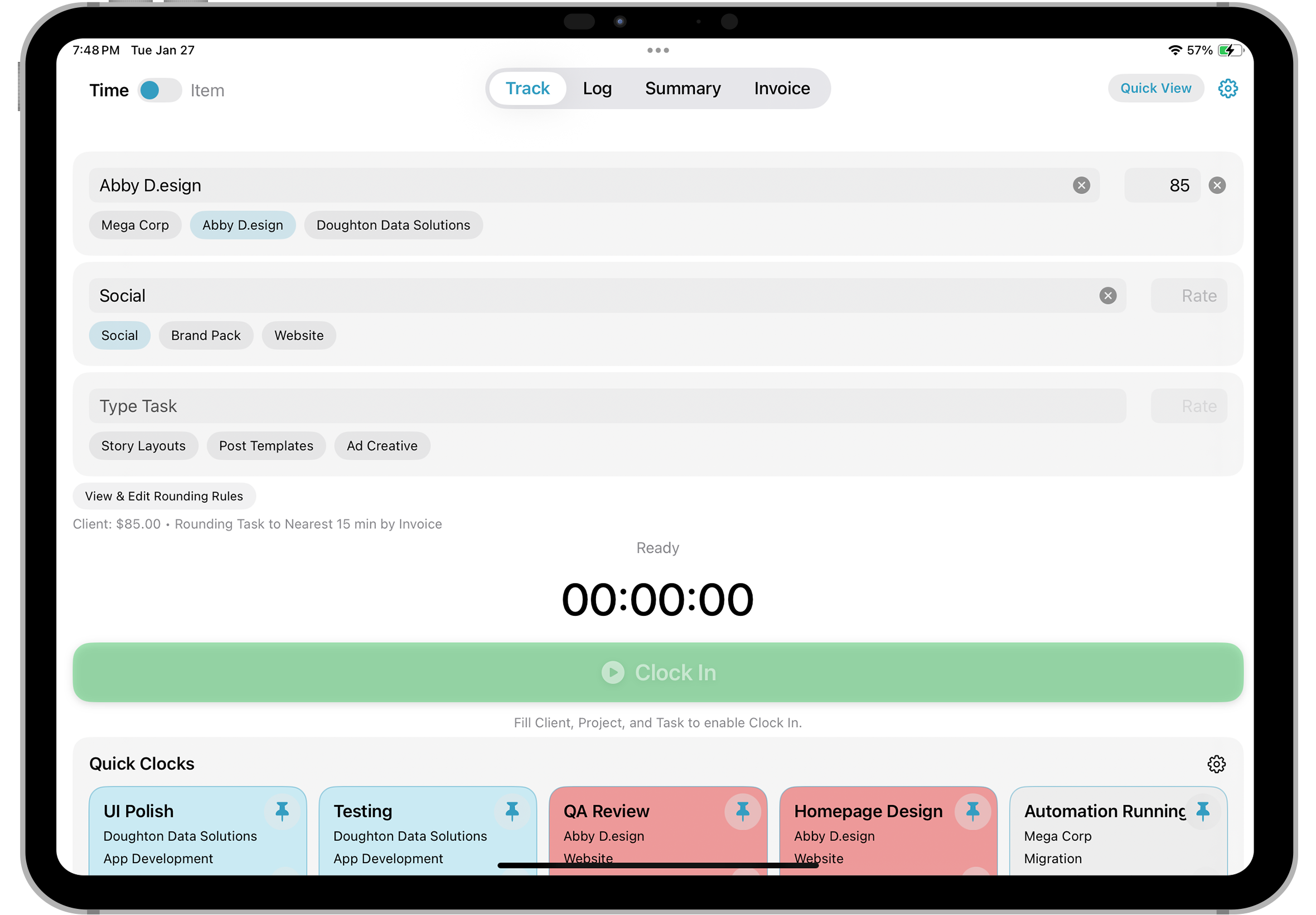
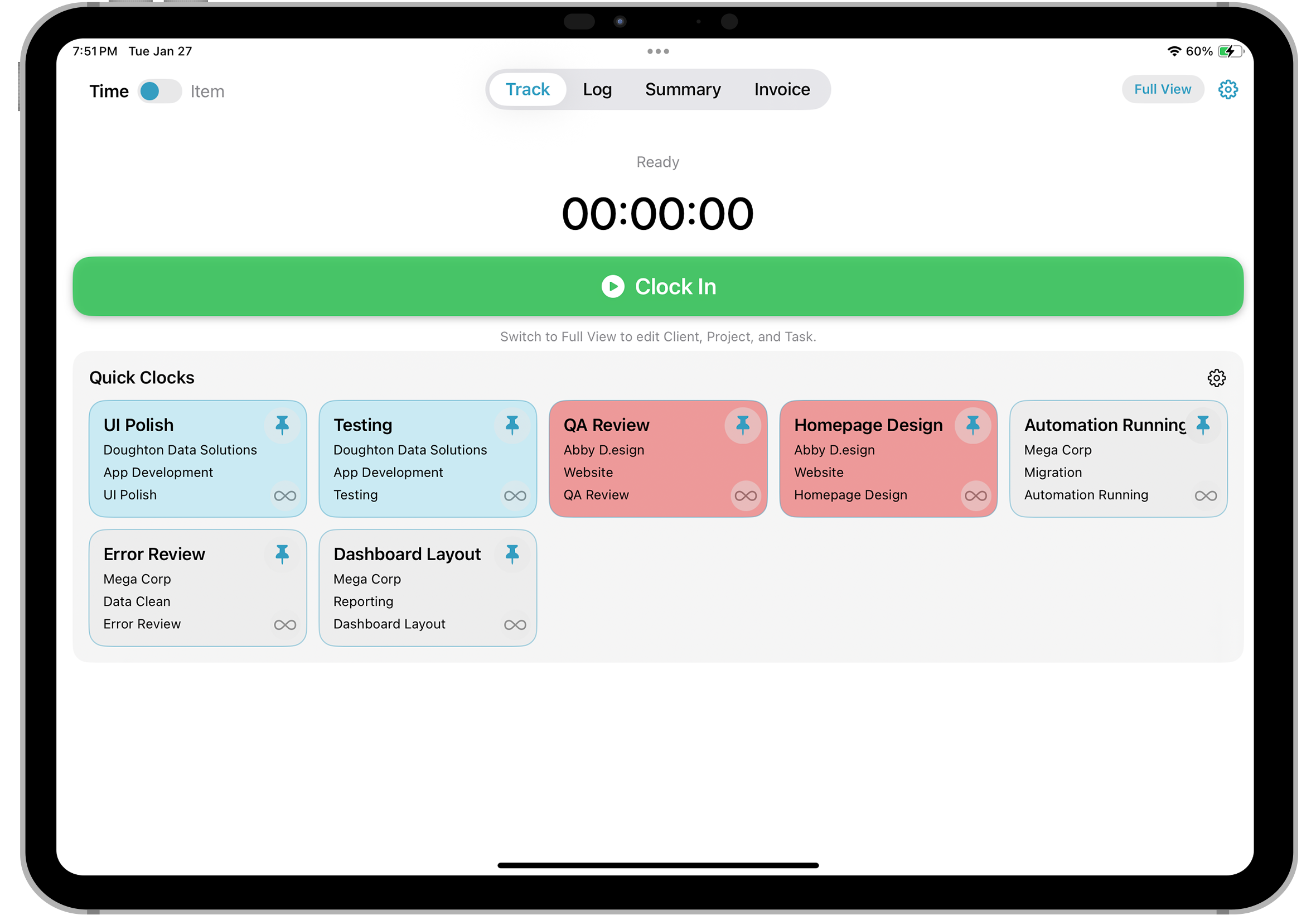
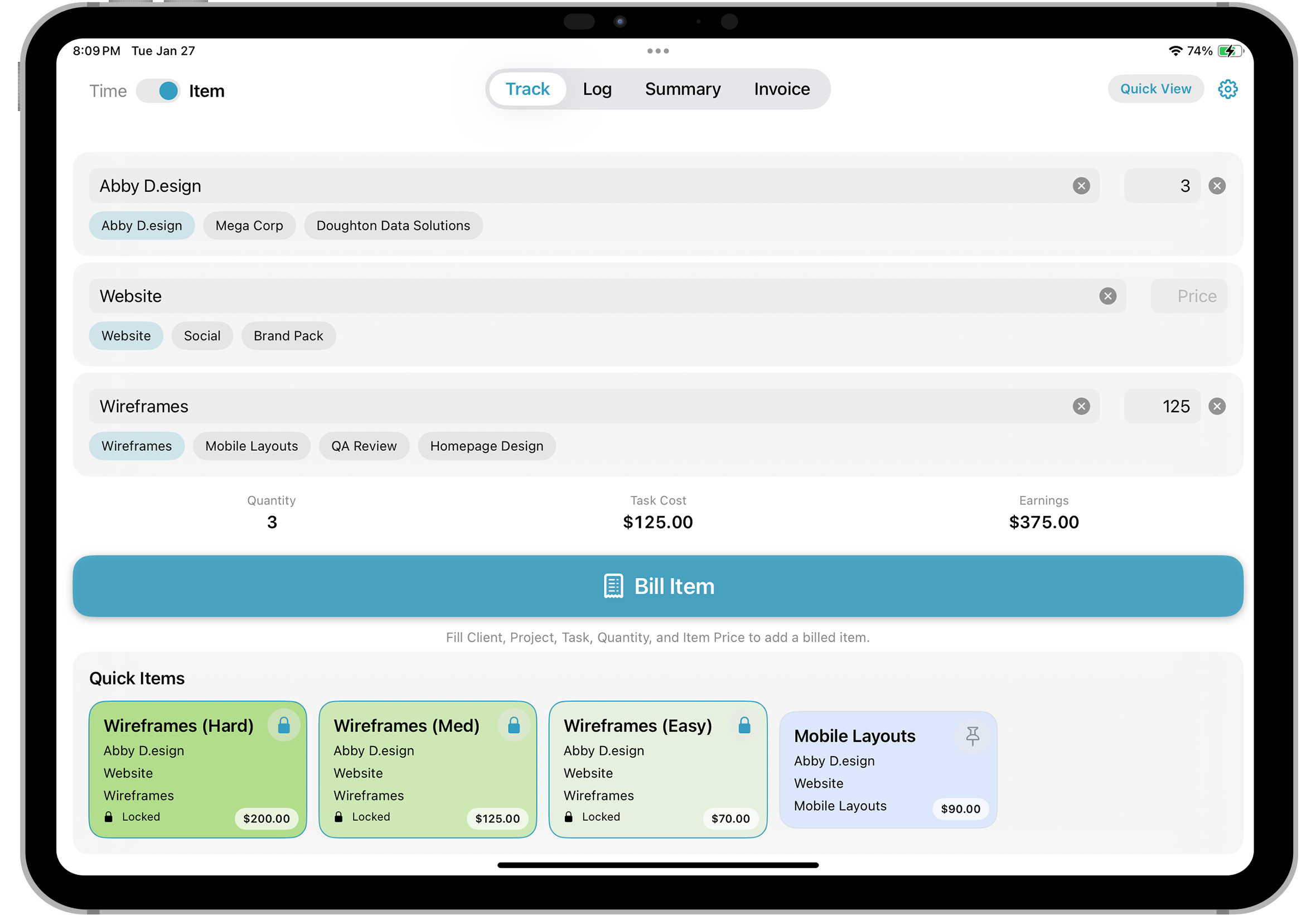
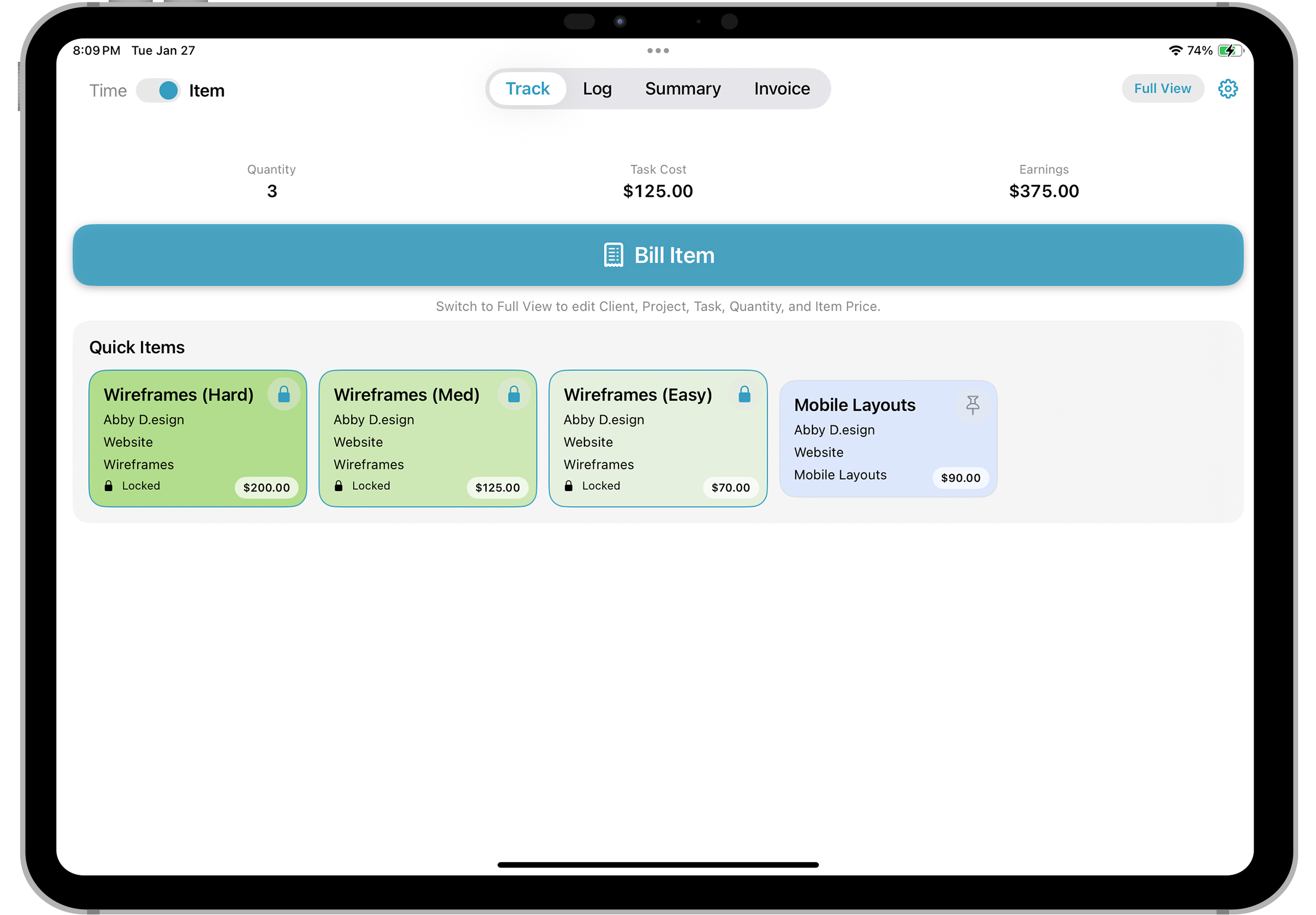
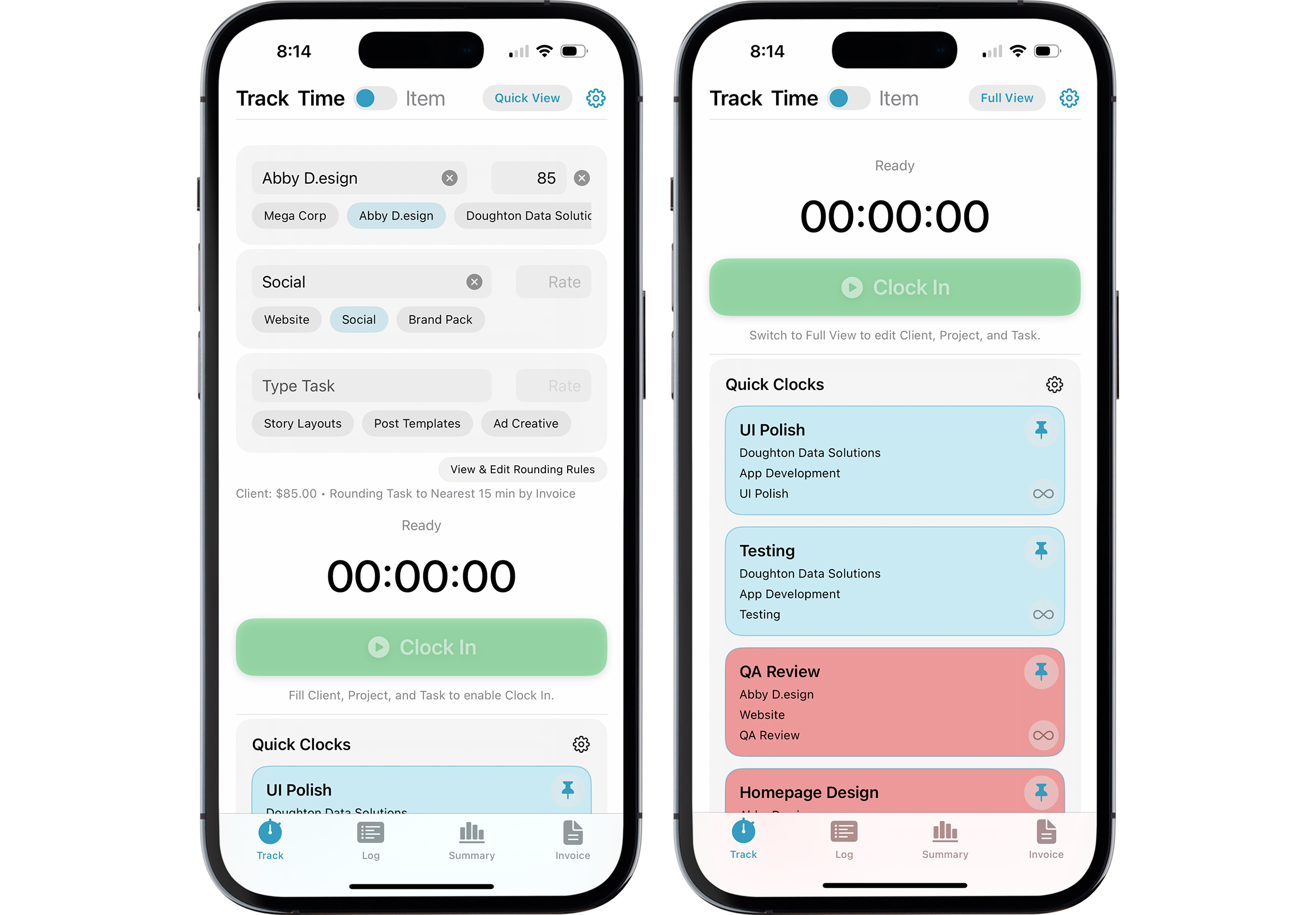
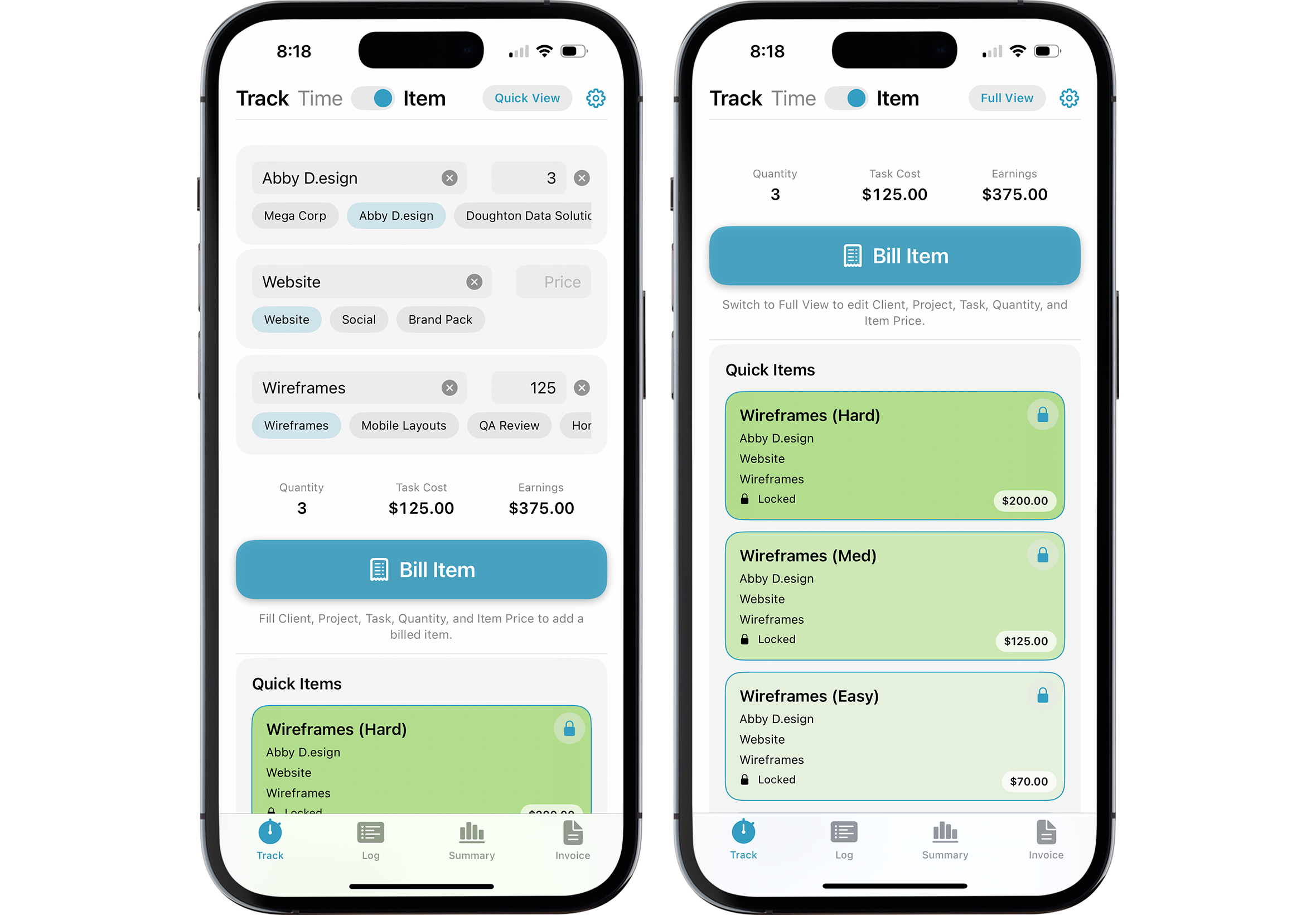
Track Time + Bill Items
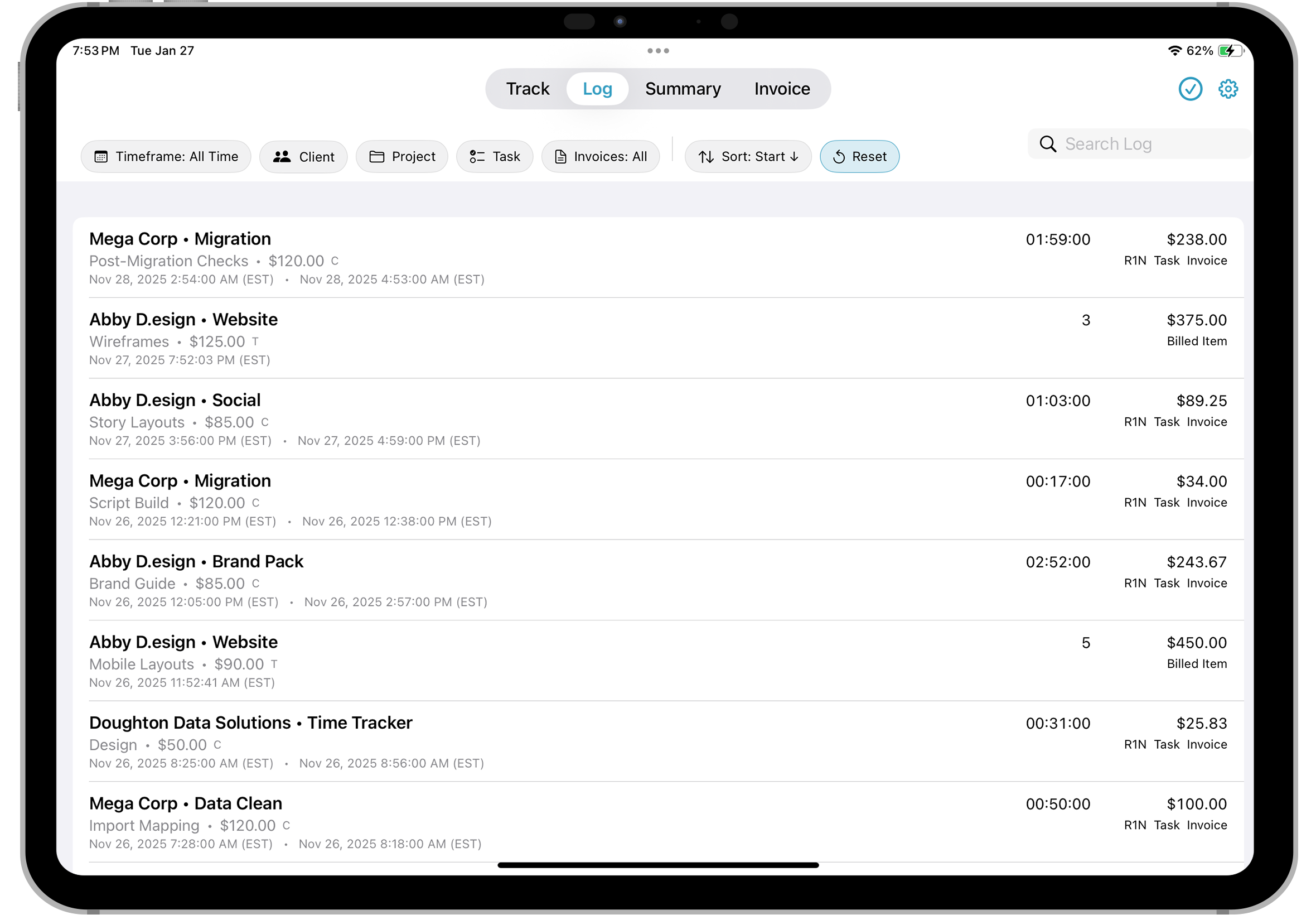
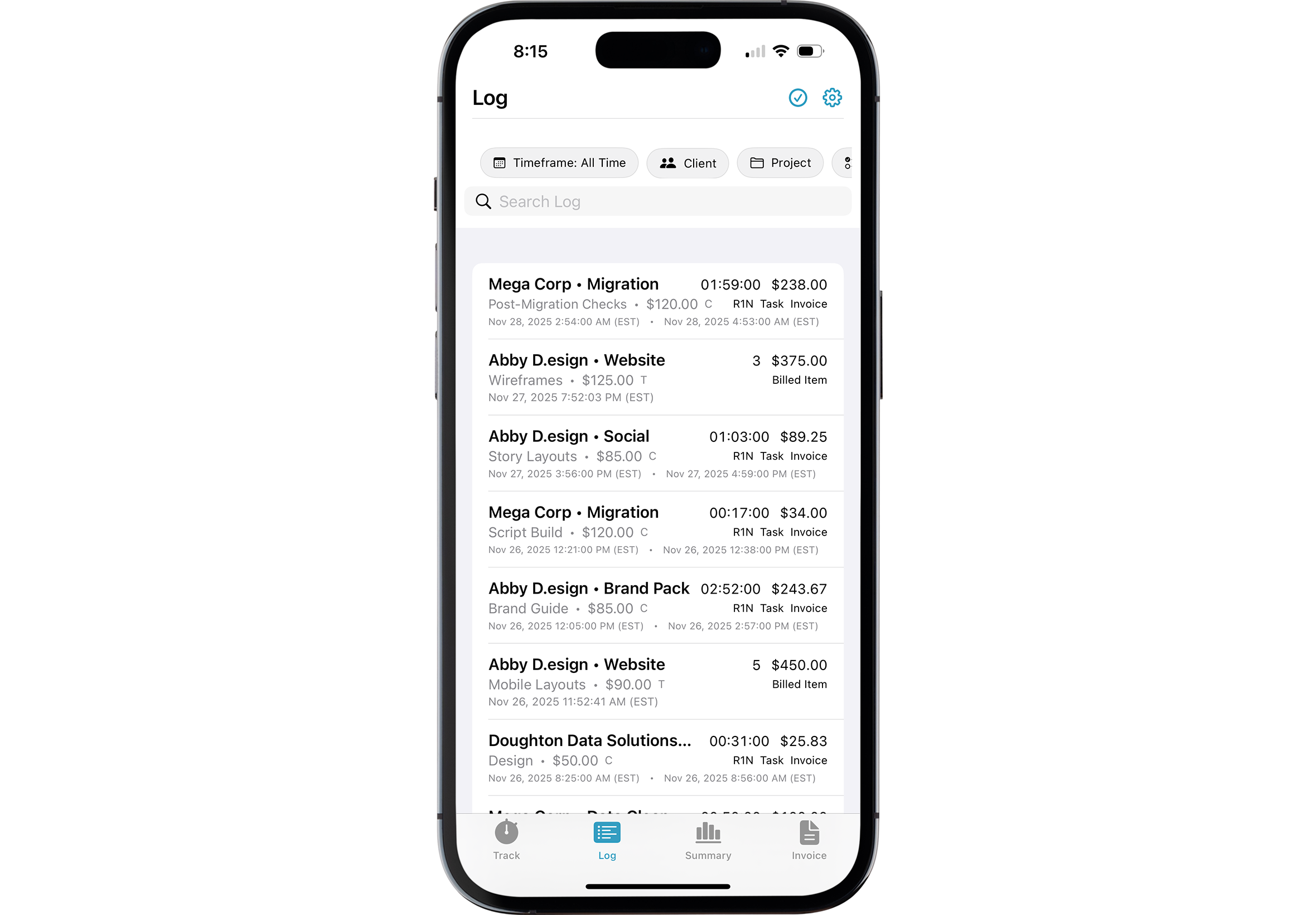
Log + Edit
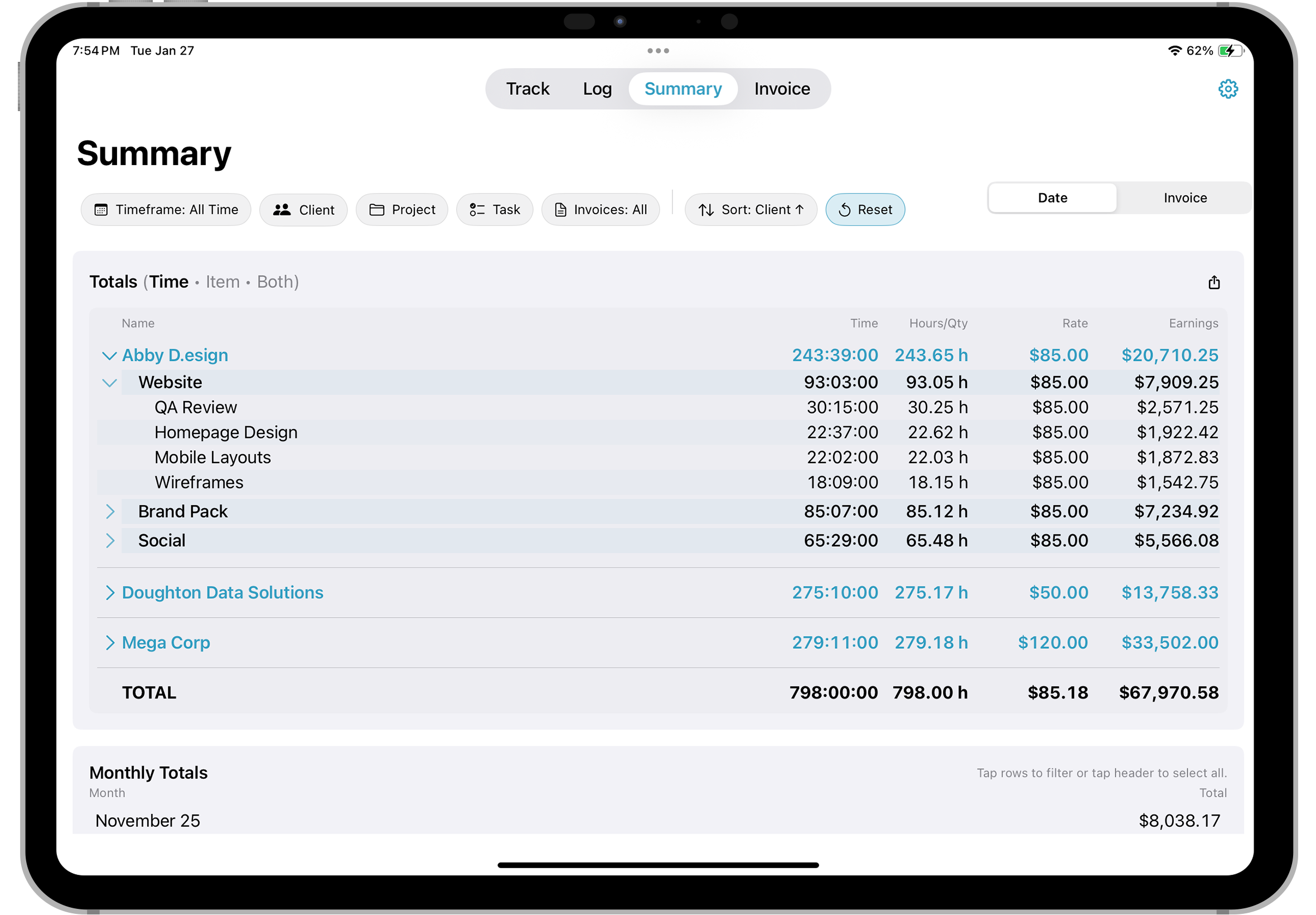
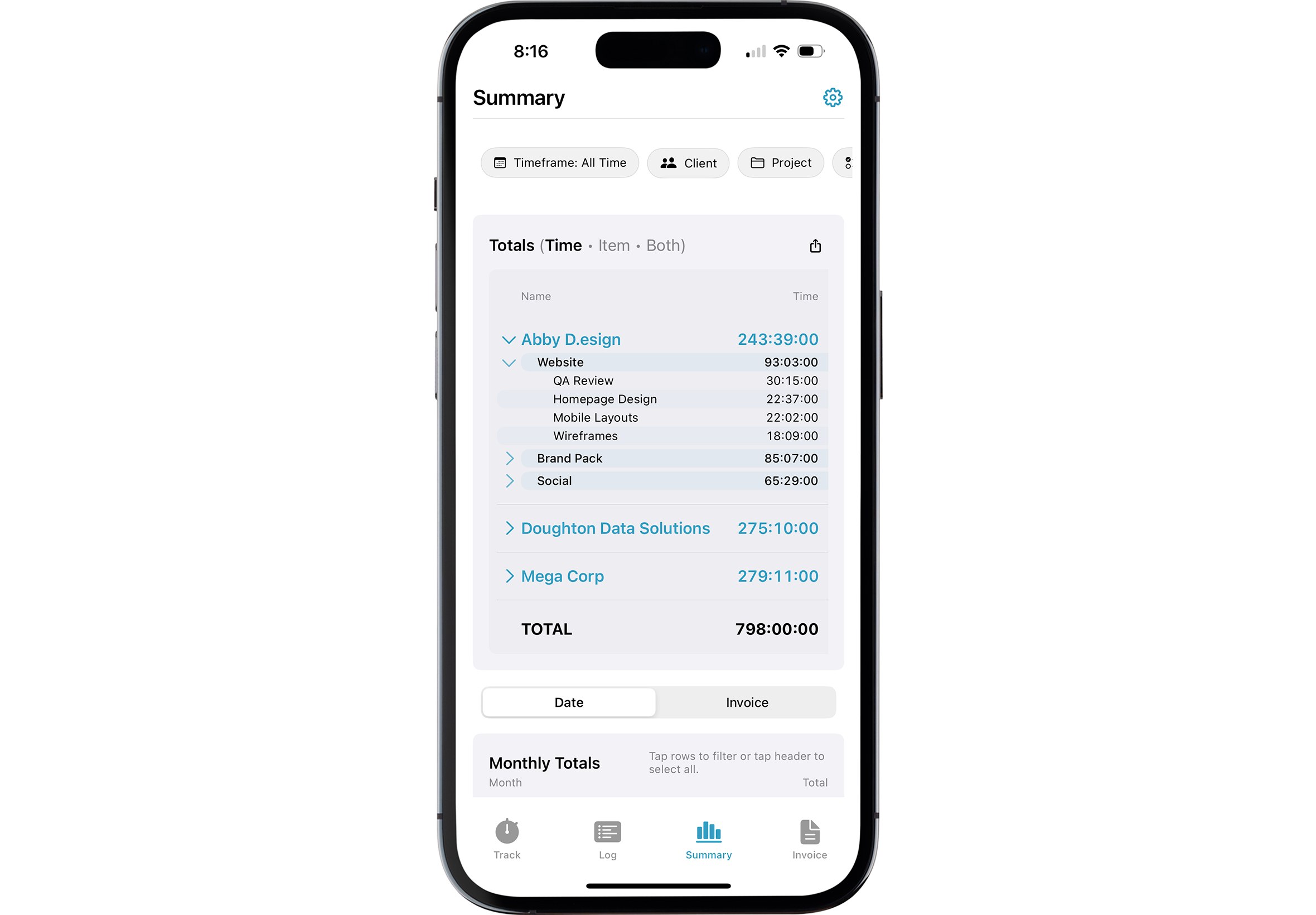
Summary + Totals
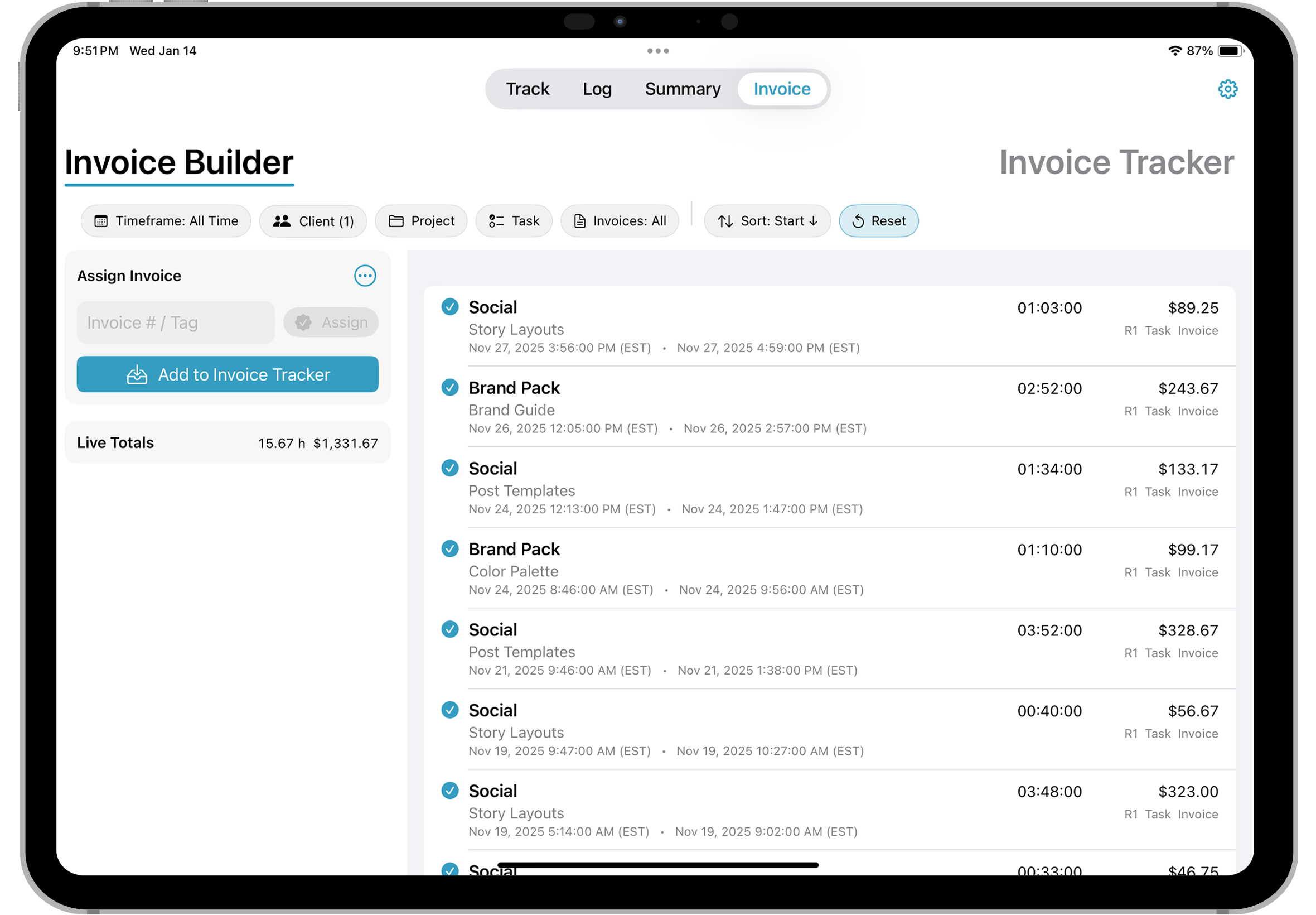
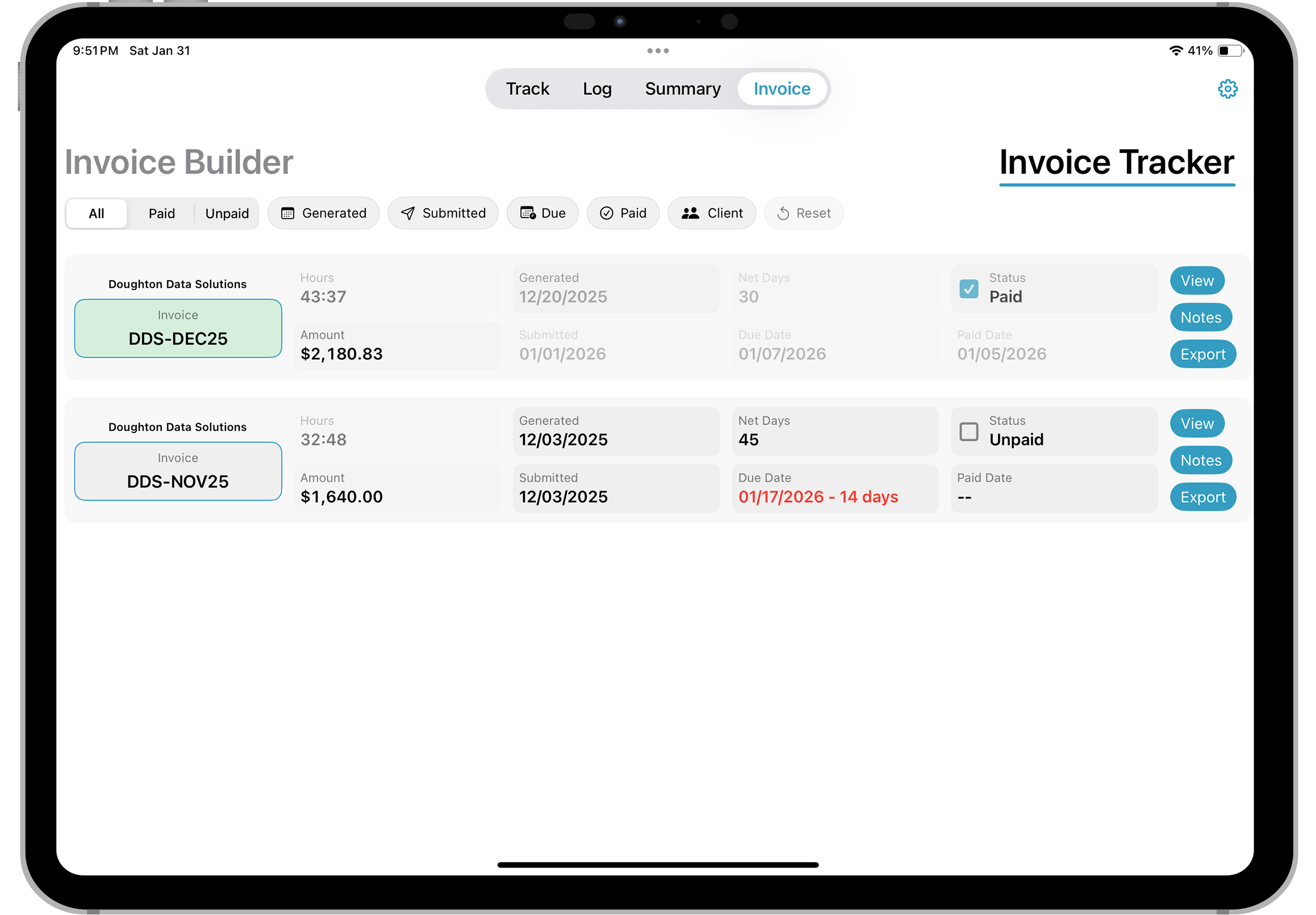
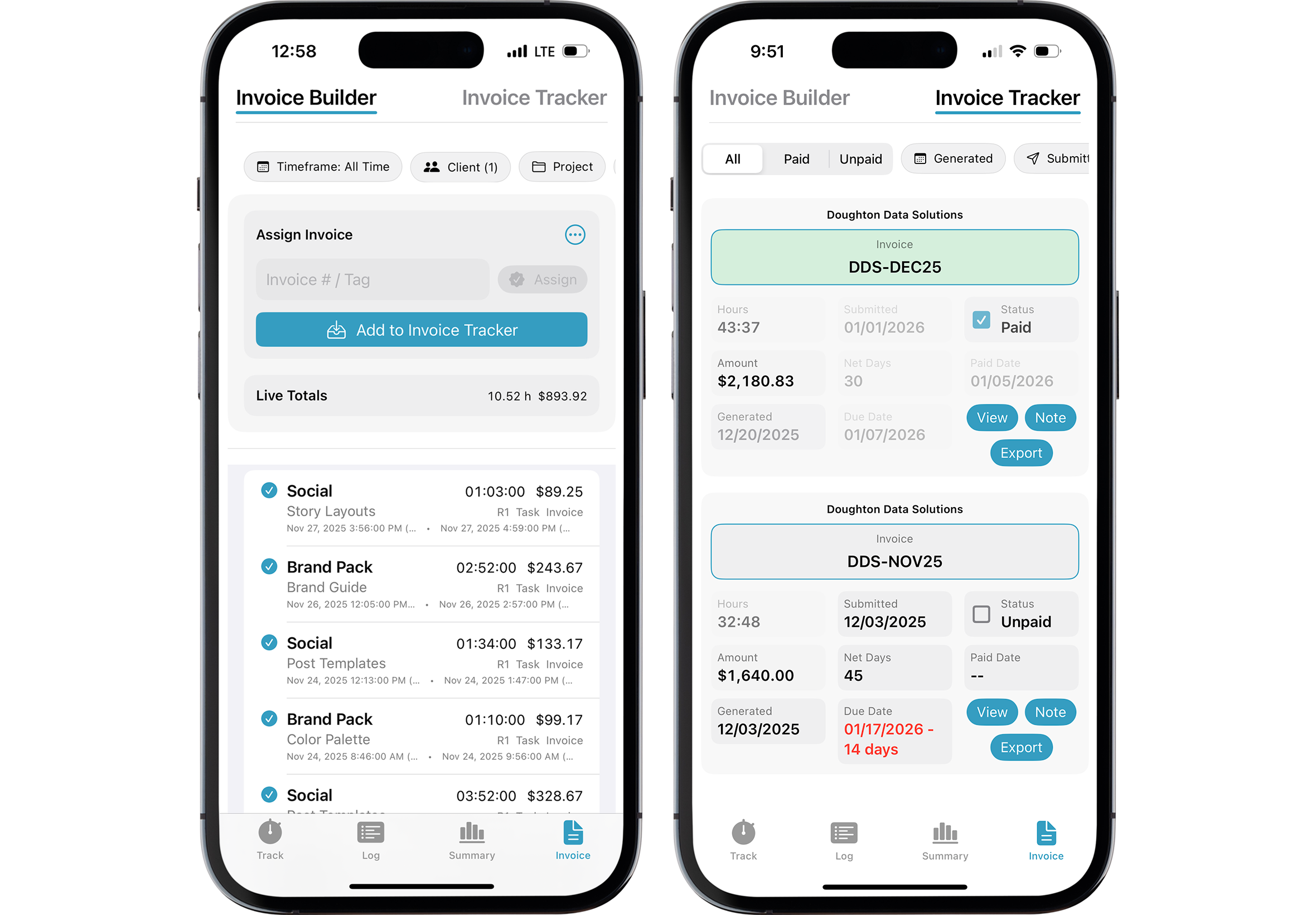
Invoice Builder + Tracker
What's Included
MyTime works without a subscription. A one-time purchase will unlock the Full Version of app with additional capabilities.
Included with the Limited Version
- Time tracking and time entry log
- Client-level billing rates
- Round to the nearest minute by invoice
- Summary tab with total hours and earnings
- Assign and generate basic invoice tracking details
- Learn the ropes with detailed in-app walkthroughs
- Export time entries and invoices (CSV)
- Import time entries and invoices (CSV) with limitations
Unlocked with the Full Version
- Log one-time flat fees and quantity-based charges
- Sync with iCloud across devices with auto-refresh intervals
- Expanded invoice tracking features
- Set rates by Project and Task for more customized billing
- Flexible rounding to any minute interval
- Round logged time up, down, or to the nearest interval
- Rounding scopes: round by day, week, or each time entry
- Override for entries requiring custom rounding or scope
- 12 Quick Clocks to swap between your most-used work
- 12 Quick Items to log your most frequently billed items
- Manually add Clients, Projects, and Tasks in Settings
- Multi-select log entries to bulk edit rates and rounding
- Add notes to log and invoice entries
- Personalize app accent color
- Import time entries and invoices (CSV) without limitations
- Export and import a full app backup (JSON) for extra peace of mind outside of iCloud
Common Help Topics
Log import (CSV) requirements & sample
- When importing a Log CSV, there are requried and optional fields
- The more data columns you can fill in, the better the imported data will be, and less assumptions will be made during the import process
- The date format must be "MMM D YYYY HH:MM:SS" or ISO-8601 standard "YYYY-MM-DDTHH:MM:SS.000Z"
- Click here to download an Excel file outlining Log import fields, the format for each field, if a field is requried, and sample data
- Click here to download a sample CSV with all the columns you can import
- Click here to download a sample CSV with the minimum required columns
Invoice import (CSV) requirements & sample
- When importing an Invoice CSV, there are requried and optional fields
- The more data columns you can fill in, the better the imported data will be, and less assumptions will be made during the import process
- The date format must be "MMM D YYYY HH:MM:SS" or ISO-8601 standard "YYYY-MM-DDTHH:MM:SS.000Z"
- Click here to download an Excel file outlining Invoice import fields, the format for each field, if a field is requried, and sample data
- Click here to download a sample CSV with all the columns you can import
- Click here to download a sample CSV with the minimum required columns
Quick Clocks: pin vs. lock
As you clock in and out of jobs, you will notice Quick Clocks are automatically created, with the most recent at the top and the rest shifting within the Quick Clocks window. Once you hit your defined maximum number of Quick Clocks, the last Quick Clock in the window will drop off the list, making space for new ones.
- Pin: If you want to keep a Quick Clock in your list, you can activate the pin icon. Pinning a Quick Clock will allow it to shift as new one are created, but it will never drop off the Quick Clocks window.
- Lock: If you want a Quick Clock to always remain in the exact same location, tap the pin icon again to activate the lock feature. Other Quick Clocks can slide in front of or behind it, but that Quick Clock will be locked to that location.
- Deactivate: Tap the lock icon again to deactivate the pin/lock setting.
Add a note to a log entry
Within the Log tab, tap the entry where you would like to add the note. Input any notes you want at the top of the Edit Entry pop up.
Round minutes to custom intervals
To customize your minute intervals to amounts not found in the standard amounts on the track tab: App Settings (gear icon in top right) • Select Client Settings • Scroll to the bottom of the Client section to reveal their Projects • Tap into the nesessary Project • Scroll to the bottom of the Project section to reveal its Tasks • Tap into the nesessary Task • Turn on Override • Type in your specific interval amount.
If you round at the Client or Project level, follow the same steps, but navigate into the corresponding level you desire.
Enable or disable iCloud sync
App Settings (gear icon in top right) • Sync with iCloud
Export your data
App Settings (gear icon in top right) • Export Log details, Invoice details, or a backup of the entire app. This export option will save to the location you select.
Remove all data from MyTime on a specific device
App Settings (gear icon in top right) • Scroll to the very bottom. You will have the option to erase all Log data, as well as the entire app data from your device. If you sync with iCloud, this may erase data across all your devices. As a safety precaution, you must type a confirmation phrase, before you can erase data.
Remove iCloud data
App Settings (gear icon in top right) • Turn off iCloud, then remove related files from your iCloud Drive.
Privacy Policy
Who We Are
Doughton Data Solutions, LLC provides MyTime: Time & Invoice Tracker.
Contact: ryan@doughtondata.com
What This Policy Covers
This policy explains what information the app processes, how it is used, and your choices. MyTime does not require a user account and does not use subscriptions.
Data the app processes
- App content you create, such as projects, entries, and related metadata, is stored locally on your device by default.
- iCloud sync (optional): If you enable iCloud for MyTime, your app data is stored and synced using Apple iCloud and CloudKit across devices signed in with your Apple ID. Doughton Data Solutions does not have access to your iCloud data.
- Exports: When you export data, files are written to locations you choose on your device, iCloud Drive, or any other location.
What We Do Not Collect
- No user accounts or passwords
- No third-party advertising
- No background tracking of location
- No contact lists or calendars
- No analytics are transmitted to Doughton Data Solutions Apple may collect diagnostics or crash information according to your device and Apple ID settings.
How Your Data Is Used
- To operate core app features on your device
- If iCloud is enabled, to sync your data across your devices using Apple CloudKit
Sharing
- We do not sell or share your app data with third parties.
- If you enable iCloud, your data is handled by Apple's iCloud and CloudKit services under Apple's terms and your device settings.
Your Choices
- iCloud: Enable or disable iCloud at any time within the app settings.
- Export: Export your data locally whenever you choose.
- Deletion on device: Delete records in the app or remove the app from your device.
- Deletion in iCloud: Turn off iCloud in the app, then manage or remove iCloud-stored data through your Apple ID and iCloud settings.
Children
MyTime is appropriate for general audiences and is not specifically intended for children under 13. The app does not collect, store, transmit, or share personal information on external servers. All data remains on the user's device unless the user explicitly enables iCloud syncing or exports their data.
Changes to This policy
This policy may be updated from time to time to reflect app changes or legal requirements.
Contact
For questions about these terms contact ryan@doughtondata.com
Terms of Use
License
When you purchase the Full Version of MyTime: Time & Invoice Tracker through the Apple App Store, you receive a personal, non-transferable license to use the app on Apple devices that you own or control, subject to Apple’s App Store terms.
Payments
Any purchases made within the app are processed by Apple through the App Store. Payment, billing, refunds, and related matters are handled by Apple and are subject to Apple’s Media Services Terms and Conditions.
Prohibited Uses
- Violates any applicable laws, regulations, or third-party rights
- Attempts to bypass, disable, or interfere with app limitations, licensing, or security features
- Reverse engineers, decompiles, or disassembles the app, except as expressly permitted by law
- Uses the app for fraudulent, deceptive, or misleading purposes
- Interferes with or disrupts the app’s operation or related services
- Attempts to gain unauthorized access to data, systems, or accounts
User Responsibility and Data Accuracy
The app is intended to assist with time tracking, invoicing, and related recordkeeping, but it does not guarantee the accuracy or completeness of any data entered, imported, calculated, or generated by the app. You are solely responsible for reviewing, verifying, and confirming all time entries, invoices, amounts, and related records before relying on them for billing, payment, or financial purposes.
Disclaimer
The app is provided “as is” and “as available.” To the maximum extent permitted by law, Doughton Data Solutions, LLC makes no warranties, express or implied, regarding the app, including but not limited to warranties of merchantability, fitness for a particular purpose, or non-infringement.
Limitation of Liability
To the maximum extent permitted by law, Doughton Data Solutions, LLC shall not be liable for any indirect, incidental, special, consequential, or financial damages, including but not limited to lost revenue, unpaid invoices, billing discrepancies, inaccurate earnings records, or data loss, arising out of or related to your use of the app, even if advised of the possibility of such damages.
Some jurisdictions do not allow the exclusion or limitation of certain damages, so the above limitations may not apply to you.
Contact
For questions about these terms contact ryan@doughtondata.com